Whole Scroll

The best full page screenshot to use, with a professional editor built in.

See how it works

A Chrome extension. Full page, this screen, a region, or one element.

Whole Scroll Back Open image
100% Full page URL/date Download PNG
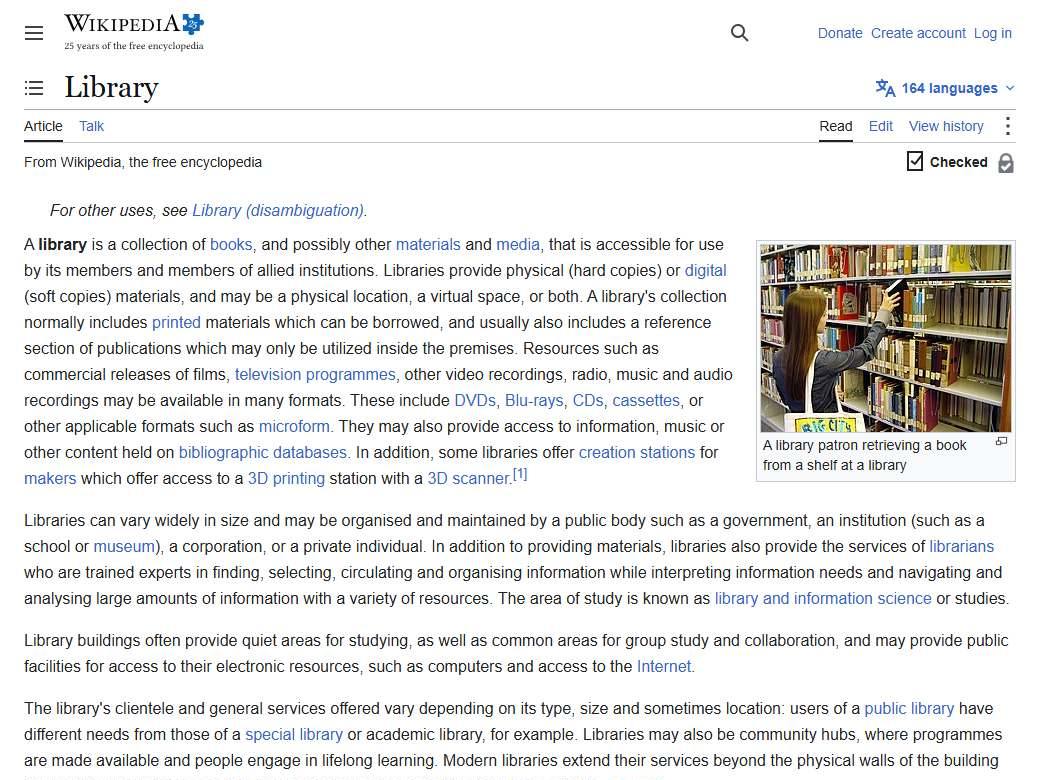
Top of a full-page capture of the English Wikipedia article Library 1 The shelf

English Wikipedia · Library. The narrow column is the whole capture.

Four ways to take the page

Click the Whole Scroll icon and choose. Alt+Shift+F starts a full-page capture.

Full page

The page scrolls. Each view is stitched into one tall image, then opened so you can save it.

This screen

Only what is visible now. Wait 3 seconds when a menu or a tip needs time to open.

A region

Drag a box. Confirm to keep that area, or continue down to the bottom of the page.

One element

Move over a heading, a picture, or a paragraph, then click. That piece is the shot.

Then mark it up

The shot opens in a new tab. Crop it, point at something, or hide a detail before you save.

On the picture

The harbor lamp is the mark.

Keep the sea on your left. Room 702, the key code stays unread. The rail is the same green as the lamps.

Crop away the margin. Add an arrow, a few words, or a step number. Blur or pixelate a name, a number, or a face. Read the text out of the picture without sending the page away: recognition runs in the browser.

Save a PNG, a JPG, or a PDF. A PNG or JPG you have not changed is ready to keep. Your latest 30 shots stay on this computer, so you can open one again.

The tools beside the picture

The shot opens in the editor. The rail is the same one you use on a real capture.

↗

Arrow

Point at a heading, a button, or a picture. The arrow is saved with the image.

1

Step number

Drop 1, then 2, then 3. The next number counts up. Numbers already on the picture stay put.

A

Text and callout

Write a label on the picture, or a note with a tail that points at the detail.

▬

Highlight and pen

Mark a sentence in color, or draw freehand where a straight line will not do.

▢

Shapes

A rectangle, an ellipse, a straight line, or a caption under the part you mean.

▦

Hide a detail

Blur it, pixelate it, or cover it. A name, a number, or a face can stay in the shot and stay unread.

☺

Emoji

Place a face or a mark from the set. It sits on the picture like any other annotation.

文

Recognize text

Read the words in a box you drag, or in the whole picture. Recognition runs in the browser.

Then take the file with you

Download it, copy it, or print it. The picture can also wear a window and a date.

PNG, JPG, or PDF

PNG and JPG keep the picture as one image. A PDF can use Letter, A4, or Legal, upright or landscape, and a long picture is split across those pages. Or keep the image at full length. Zoom in before you save, or crop the margin away.

A window, a date, a line of your own

Frame the shot as a macOS or Windows window, or put the address in a bar above or below. Add the date, the date and time, or a line you type along the bottom. On a PDF, that address can open the original page.

The latest 30 stay on this computer

Open one again from the list on the left, or open a picture of your own. Copy the image, print it, or download it. A PNG or JPG you have not changed is ready to keep.

What you do

1

Open the page

Any page you are already reading. Whole Scroll does not sit on the page until you ask for a shot.

2

Choose the piece

The whole scroll, the screen in front of you, a box you drag, or the element under the pointer.

3

Save the image

It opens beside the page. Download it, or mark it up first. The file goes to your own downloads folder.

The picture stays here

The page, the image, and any text read from the image stay in this browser. Taking a screenshot does not upload them.